
Understand this result with reaction time test. Keep the task and input settings visible when comparing results.
How does the reaction time test with sound work?
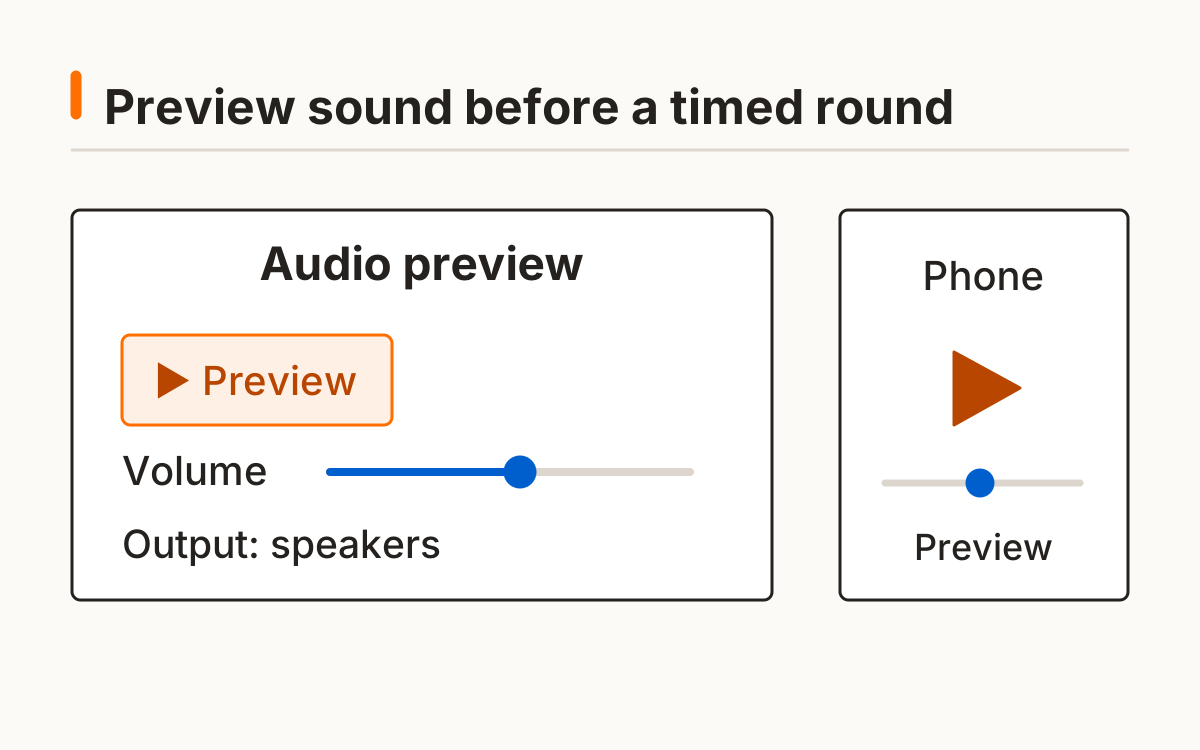
The reaction time test with sound plays a short tone after a random wait of 1.5–4.5 seconds. Preview it first and confirm that it is audible at a comfortable volume. The test uses an explicit user gesture to start browser audio and never requests microphone access.
Choose mouse, touch, or keyboard before beginning. The scored rounds provide no visual go cue; the panel keeps the same appearance while you listen. Five valid responses produce the median and raw times. An early press is recorded separately and does not become a valid latency.
- Preview the tone and adjust the volume.
- Confirm that you can hear it.
- Start a round and respond after the tone.
- If no tone is heard, reset or wait for the unscored timeout.
The reaction time test with sound leaves its listening panel visibly unchanged across the cue. Muted output therefore does not turn it into a visual task. Reset or wait for the unscored timeout if you cannot hear it.
What delay can affect a reaction time test with sound?
The audio output path can delay when you physically hear a scheduled tone. Input processing also affects the endpoint. The tool maps the audio clock to browser time when output timestamps are available, but this does not measure physical tone arrival at your ears or calibrate Bluetooth, speakers, or headphones.
The timer uses a monotonic browser clock. See the documentation for the software time reference and resolution limits. MDN browser timing documentation.
Audio reaction test: which output should you record?
Record your output when using an audio reaction test. Built-in speakers, wired headphones, Bluetooth, and other paths can behave differently. Keeping a label with the session makes that difference visible; it does not correct the latency.
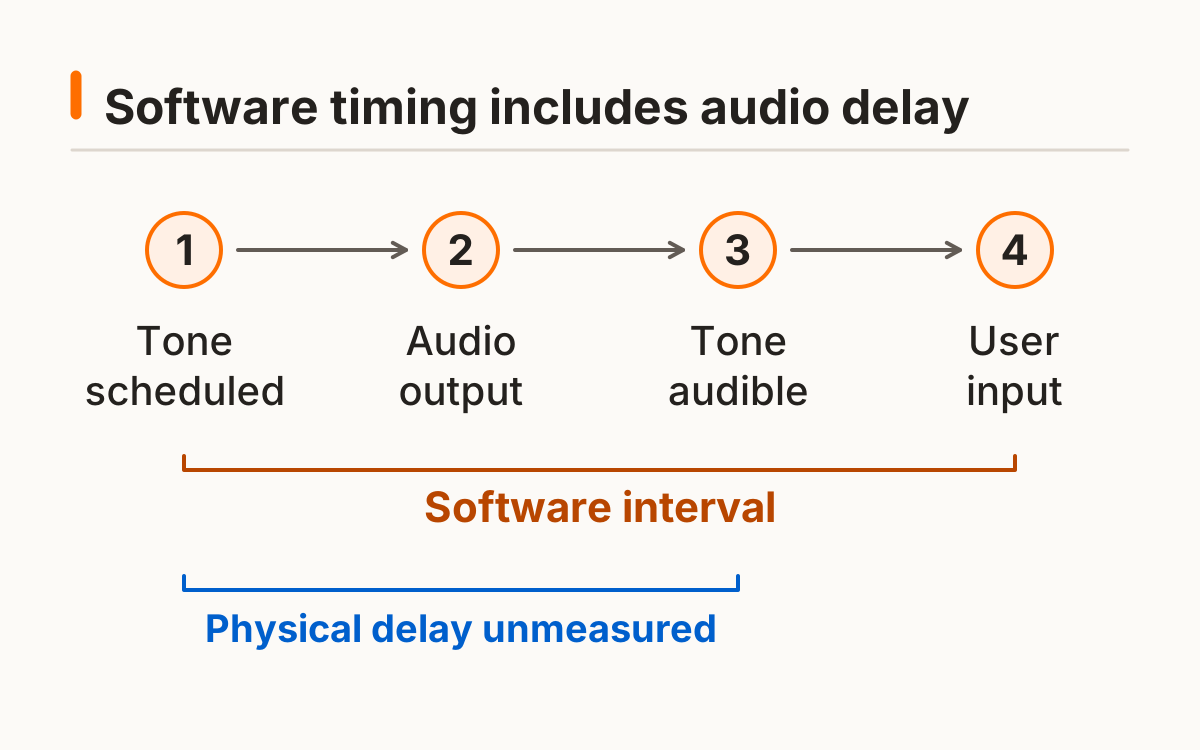
The tone is a 100 ms sine signal with a short volume ramp. Browser audio scheduling and output timestamps describe software clocks. If an output timestamp is unavailable, the mapping uses the current audio and monotonic clocks with the same uncalibrated-output disclosure.
Output labels record conditions rather than calibrate them. Choosing Bluetooth does not subtract an assumed Bluetooth delay. Keep the output path consistent and begin a separate series after changing it.
Sound reaction time test: how do you start safely?
Start the sound reaction time test with the preview control, not by assuming the device will play sound. A muted device, a blocked audio context, or a changed output can invalidate the practical setup. Suspended or unsupported audio produces an error instead of an invented result.
Device changes cancel the current round and require another preview. The tool also cancels an active round on focus loss. A ten-second response timeout gives you a chance to retry the setup when you cannot hear a tone, without classifying the missing response as a slow score.
Preview and scored tones use the same volume. Changing volume or the output label requires another confirmation. Suspended audio stops scoring rather than timing a response to a tone the software could not properly schedule.
Why is this not a hearing assessment?
This reaction time test with sound records a response to a software audio cue. It does not test hearing thresholds, diagnose attention conditions, or separate perception from device delay. A tone being audible in a preview is a setup check, not a hearing assessment.
Keep auditory and visual sessions separate in your comparisons. They have different cue and output paths. Optional local saving retains the input and output labels, and CSV export gives you the underlying five values without creating an account.
A hearing assessment requires its own validated apparatus and procedure. This reaction time test with sound supplies no hearing threshold or attention diagnosis. Read it as a browser task with physical output uncertainty.
Frequently asked questions
Do I need microphone access?
No; the task plays a tone and does not record sound.
Can Bluetooth change the result?
The output path can add delay that is not calibrated here.
Can this test diagnose hearing?
No; it is a browser response task.
Why preview the tone?
It lets you choose a comfortable audible level before a scored round.
Can I compare this directly with visual scores?
Keep the task and output differences visible rather than ranking unlike setups.
Sources and method
MDN browser timing documentation. Read this source within its own method; the protocol and synthetic examples on this page describe this site’s implementation.
Audio scheduling and clock mapping: Web Audio API and AudioContext.getOutputTimestamp. Physical output latency is uncalibrated.
Published October 20, 2026 · human-reactiontimetest.com · Report a correction